| Version 2 (modified by , 18 years ago) (diff) |
|---|
Screenshots
Most of the following screenshots have been taken on 800x600, the HUDs on 1024x768.
In this case, all installer options have been activated.
CortUI installer

The installer allows you to customize CortUI to a certain degree.
Lobby screen
The modified lobby screen shows ten lines of chat and the AllegSkill team ratings no longer run out of the box.
Hangar screen

As all screens, the hangar shows up to ten lines of chat to make it easier to follow discussions. When the hangar modification is installed, these chat lines also don't run into the background image on 800x600. The base status display has been moved and the last orders are shown.


The drawing order of the windows has been modified and the windows have been moved so that the chat and the minimap is visible at all times.
Map screen (optional)

The map now always shows the loadout window. The command bar and the minimap have been moved to the side to make more room. In the upper left corner, the current state of your ship (type, shields, hull, energy, ammo, fuel, thrust, speed, signature, kill bonus), your current target (name, distance) and the current mode (autopilot, vector lock) are shown. It also shows whether you are seen and whether your cloak has been activated. If you are in turret, it also shows whose turret you are in.

The ripcording timeout is show on the map as well.
Loadout screen

The loadout screen shows up to six lines of chat. The base status bar has been moved to make room for the chat. Optionally, the minimap can be displayed here. The 'default loadout' button has been moved, because it is hardly ever used and was easily clicked by accident, when you wanted to actually confirm or launch.

When in the turret of another ship, the loadout screen now informs you about that.
HUDs
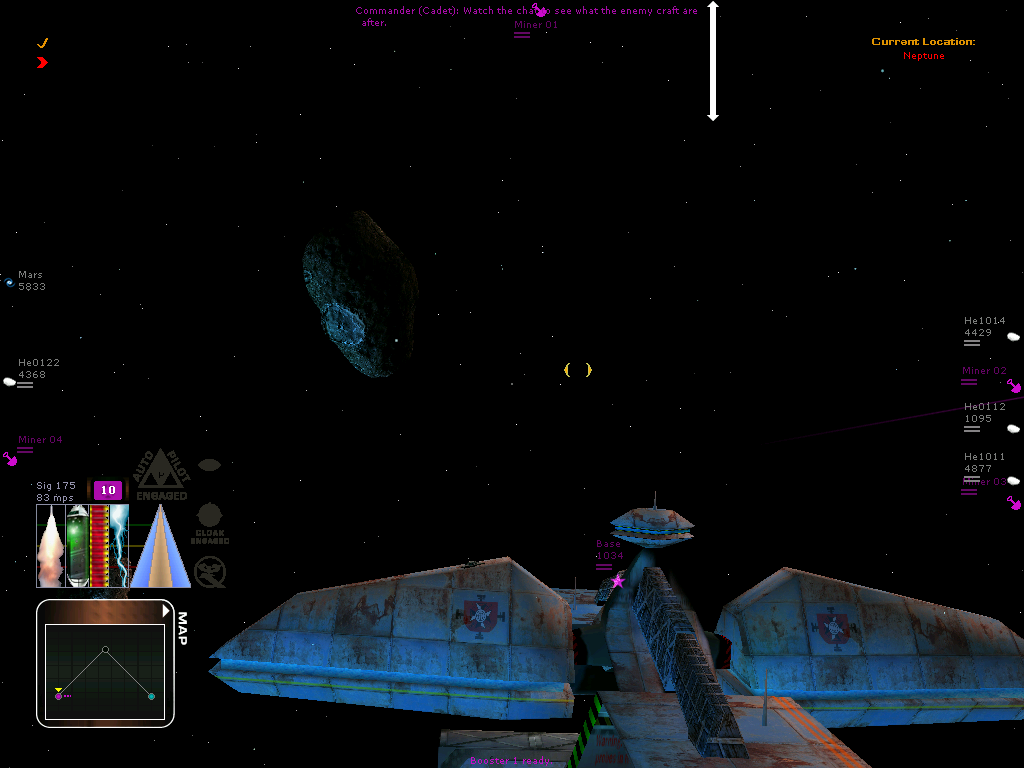
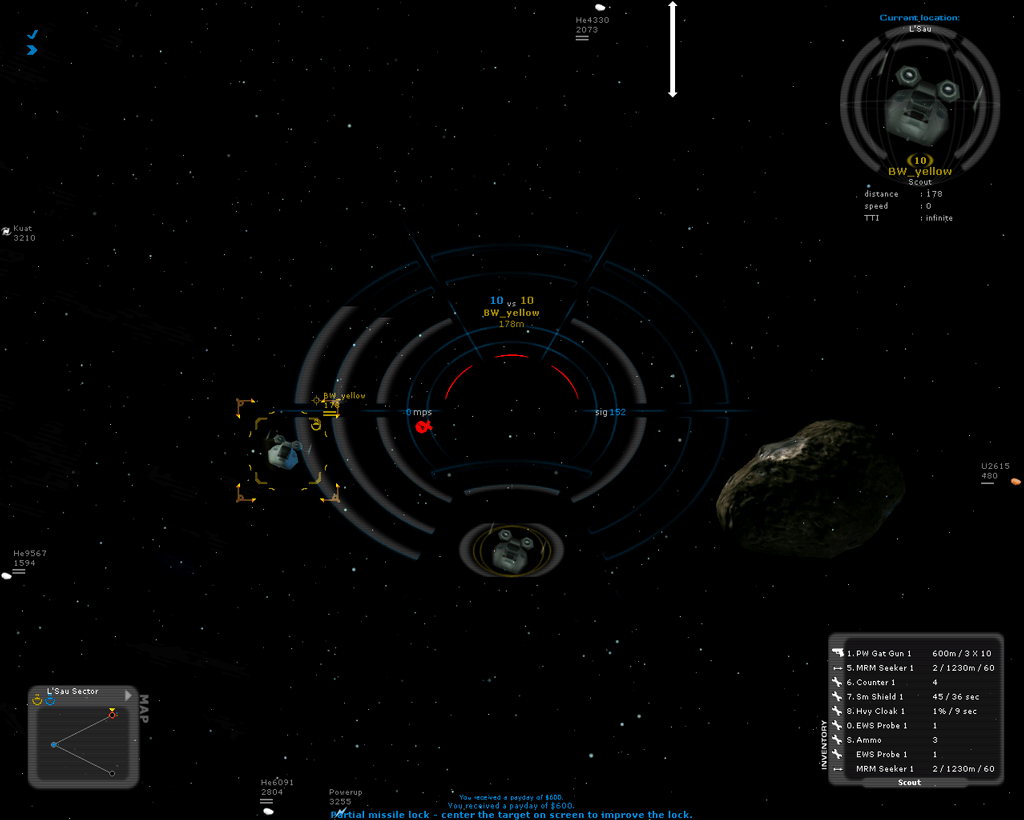
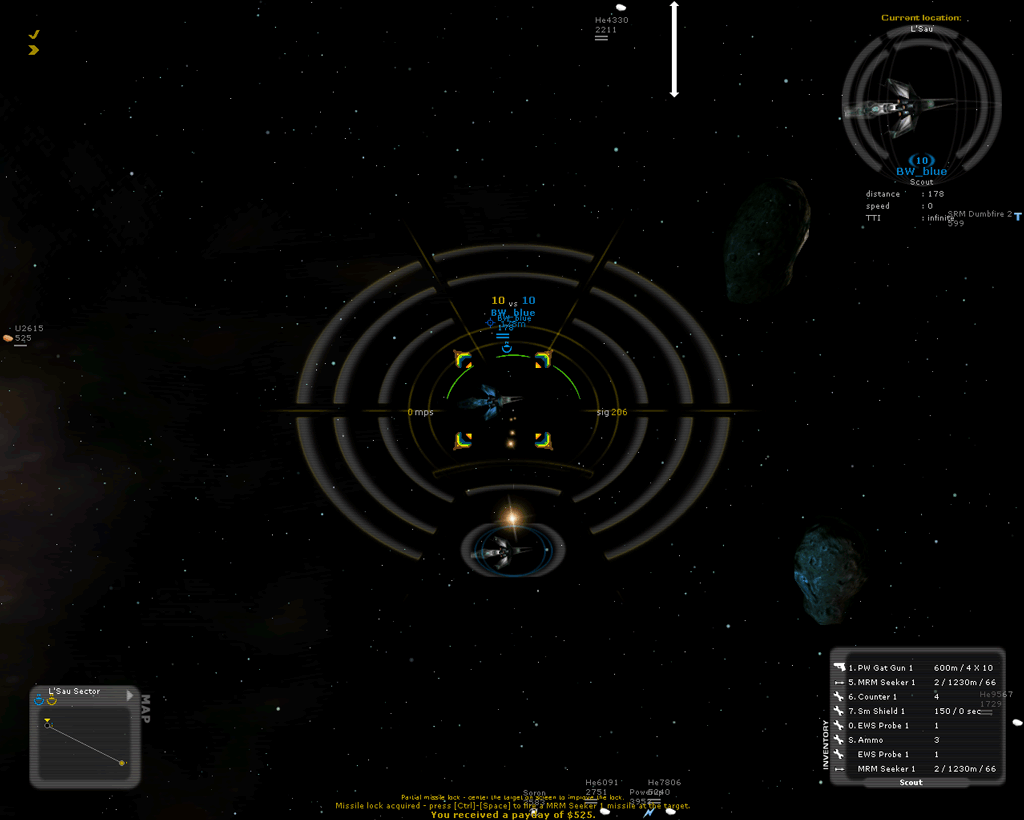
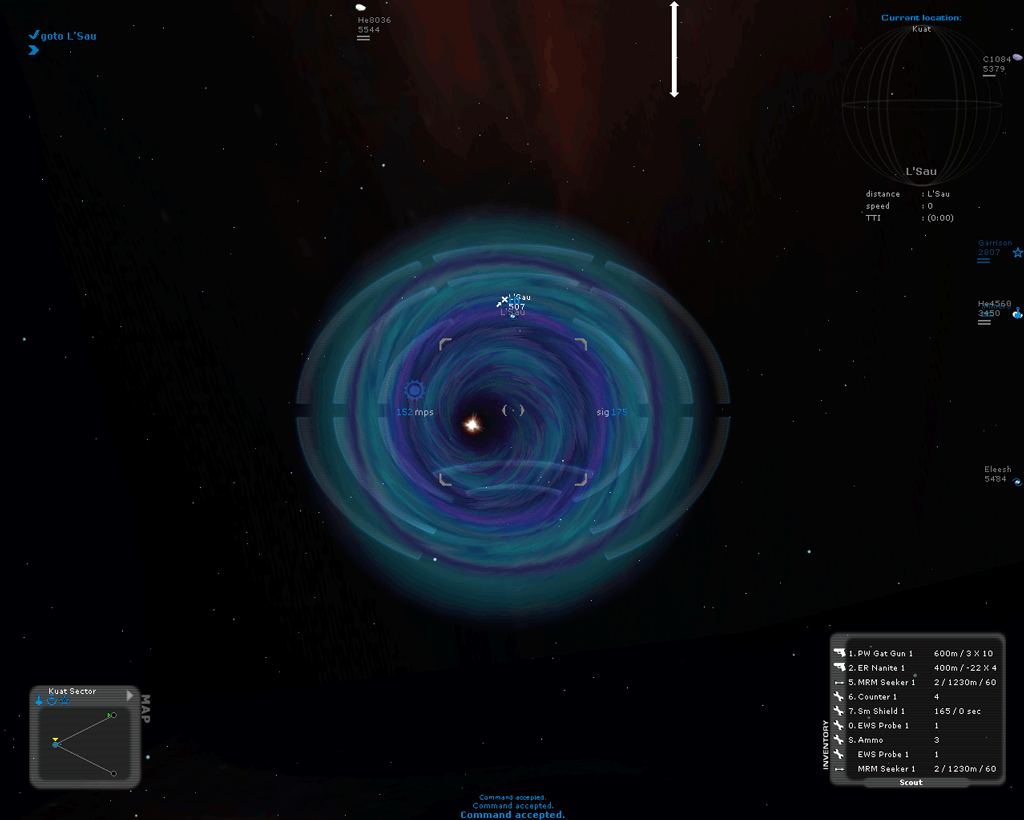
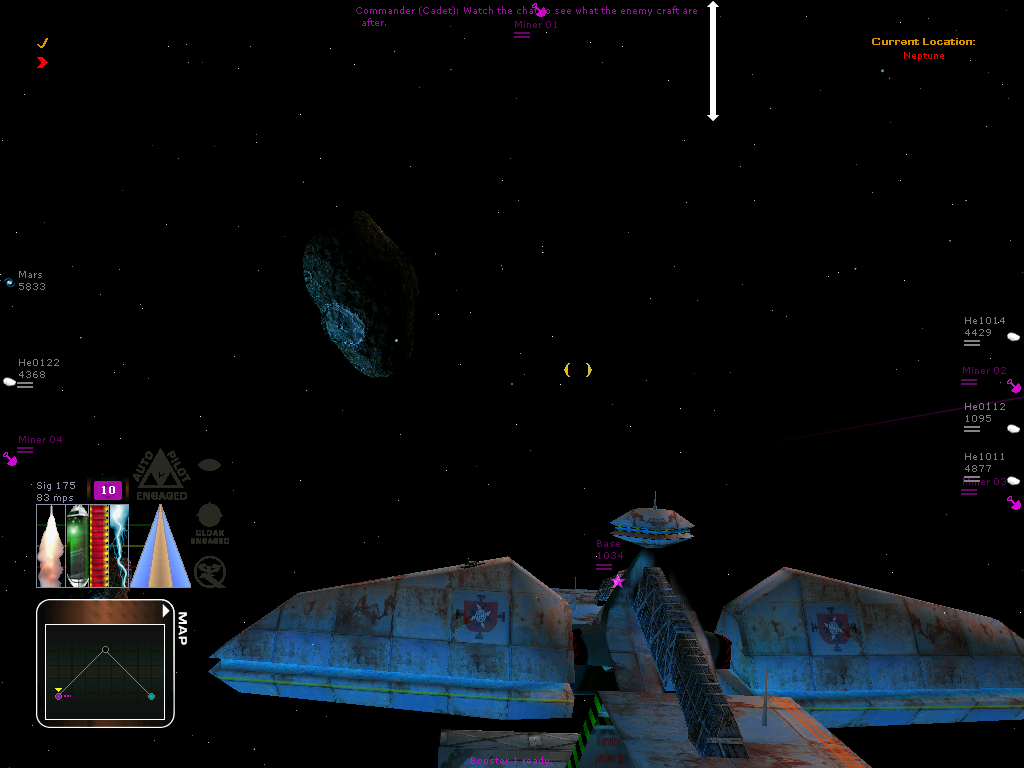
The following HUDs can be selected in the CortUI installer. In CortUI 1.x, only exactly one regular HUD (Classic CortUI, lessHUD or JelloShot) and one 'software' HUD (regular, regular with targeting view, Raveen-style, Parci-style) can be selected. Switching to another HUD requires a reinstallation of CortUI or a manual modification of the CortUI configuration file.
This is due to how these HUDs are integrated into Allegiance and will hopefully change for the 2.x releases.
Classic CortUI
More Information about Classic CortUI can be found on the page HudClassicCortui?.
lessHUD
More Information about lessHUD can be found on the page HudLessHud.
JelloShot
More Information about JelloShot can be found on the page HudJelloShot.
Software HUD with targeting view
This is a very simple modification that takes the stock software HUD of Allegiance and adds the targeting view of the regular HUD.
Modified software HUD, Raveen-style
More Information about the modified software HUD, Raveen-style, can be found on the page HudRaveenStyle.
Modified software HUD, Parci-style
More Information about the modified software HUD, Parci-style can be found on the page HudParciStyle.
Attachments (5)
- ParciHUD 1.png (189.7 KB) - added by 18 years ago.
- GlassHUD_demo_damaged.png (72.4 KB) - added by 15 years ago.
-
GlassHUD_demo_overall.png (86.4 KB) - added by 15 years ago.
GlassHUD demo overview
-
GlassHUD_demo_uneyed.png (124.7 KB) - added by 15 years ago.
uneyed blue team
-
ParciHUD_1.png (189.7 KB) - added by 15 years ago.
Screenshot of the Parci style Software HUD
Download all attachments as: .zip